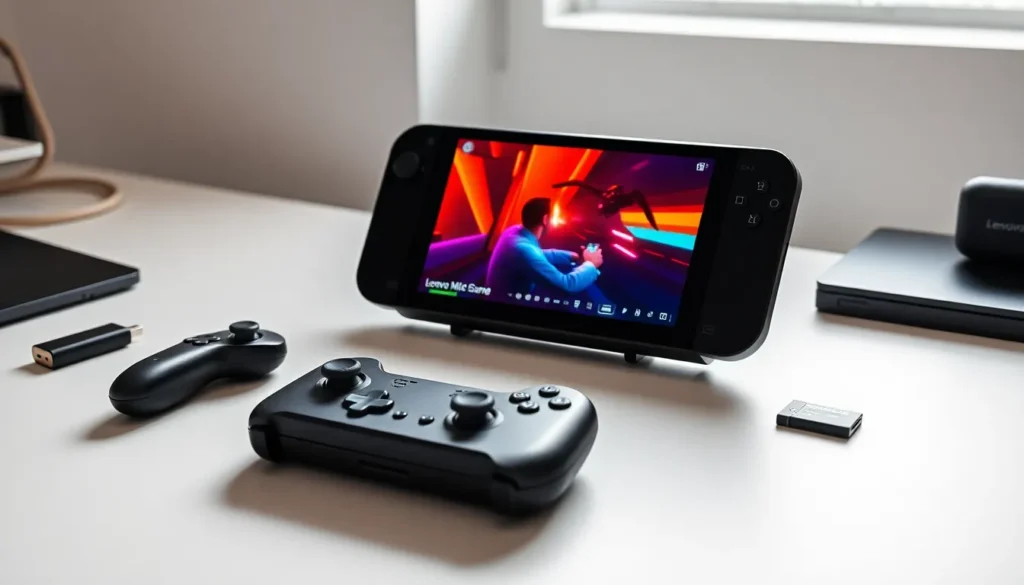

Learning how to Lenovo Legion Go starts with understanding what makes this handheld unique. Unlike other portable gaming devices, the Legion Go runs full Windows 11. This means users get access to Steam, Xbox Game Pass, and virtually any PC game library. The device features an 8.8-inch display, detachable controllers, and serious hardware under the hood. For newcomers, this flexibility can feel overwhelming at first. This guide breaks down everything beginners need to know, from initial setup to game optimization. By the end, users will operate their Legion Go with confidence.
Table of Contents
ToggleKey Takeaways
- The Lenovo Legion Go runs full Windows 11, giving users access to Steam, Xbox Game Pass, and virtually any PC game library.
- Install Lenovo Legion Space after setup—it serves as the command center for managing games, performance profiles, and RGB lighting.
- Use the three performance modes (Quiet, Balanced, Performance) to balance game quality and battery life based on your needs.
- The detachable controllers offer versatile play styles, including FPS Mode where the right controller transforms into a motion-controlled mouse.
- Optimize battery life by lowering screen brightness, using Quiet Mode, disabling Wi-Fi, and capping frame rates at 30–40 FPS.
- Expand the 512GB storage affordably with a microSD card and move game installs there through your launcher settings.
Getting Started With Your Legion Go
The first step with any new device is the unboxing and setup process. The Lenovo Legion Go comes with the main unit, two detachable controllers, a controller grip (for FPS mode), and a 65W USB-C charger.
Users should charge the device fully before powering it on. This takes roughly two hours. Once charged, press and hold the power button on the top edge for three seconds. Windows 11 will boot up and walk users through standard setup steps: language selection, Wi-Fi connection, and Microsoft account login.
After Windows setup completes, users should install Lenovo Legion Space. This app serves as the command center for the Legion Go. It manages game libraries, adjusts performance profiles, and controls RGB lighting. The app comes pre-installed, but checking for updates is smart practice.
Drivers matter too. Head to Settings > Windows Update and install all available updates. Lenovo releases firmware and driver updates that improve controller detection, battery life, and overall stability. Skipping this step often causes problems later.
One quick tip: create a local account if privacy matters. Windows 11 pushes Microsoft account integration hard, but a local account works fine for gaming.
Navigating the Windows Interface on a Handheld
Windows 11 wasn’t designed for handheld devices. This creates a learning curve for Legion Go users. But, Lenovo included tools to make the experience smoother.
The touchscreen handles most basic interactions. Tap to click, swipe to scroll, and pinch to zoom. Windows also includes an on-screen keyboard that appears automatically in text fields. For faster text input, users can connect a Bluetooth keyboard.
The right trackpad on the detachable controller functions as a mouse. This helps when precision clicking is needed, like adjusting Windows settings or managing files. The trackpad takes practice, but it works well once users get comfortable.
Lenovo Legion Space offers a console-like interface for launching games. Users can add games from Steam, Epic, GOG, and other platforms. This bypasses the Windows desktop entirely for gaming sessions. Many users stay in Legion Space most of the time.
For those who prefer Steam’s interface, Big Picture Mode provides another controller-friendly option. Steam designed this mode specifically for TV and handheld use. It works great on the Legion Go.
A few Windows tweaks help the handheld experience:
- Increase display scaling to 150% for easier reading
- Enable tablet mode for larger touch targets
- Pin frequently used apps to the taskbar
- Disable unnecessary startup programs to speed up boot times
Using the Detachable Controllers
The Lenovo Legion Go controllers detach from the main unit. This feature sets it apart from competitors like the Steam Deck and ASUS ROG Ally. Users can play with controllers attached, detached while using the kickstand, or with the right controller converted into an FPS mouse.
To detach the controllers, press the release buttons on the back of each controller and slide them off. The controllers connect via Bluetooth when detached, so ensure Bluetooth is enabled on the device.
The included controller grip transforms the right controller into a vertical mouse. Lenovo calls this FPS Mode. Slide the right controller into the grip, and it functions like a motion-controlled mouse. This setup works well for first-person shooters on a tabletop.
Controller mapping happens through Legion Space. Users can remap buttons, adjust stick sensitivity, and create game-specific profiles. The back paddles offer extra inputs, handy for complex games that need many button binds.
Each controller contains a built-in battery. They charge automatically when attached to the main unit. Battery life on the controllers lasts roughly 10 hours of wireless use.
For fighting games or platformers, many users prefer third-party controllers. The Legion Go supports any Windows-compatible controller via USB or Bluetooth. Xbox controllers work especially well since Windows has native support.
Optimizing Game Performance and Battery Life
The Lenovo Legion Go packs an AMD Ryzen Z1 Extreme processor. This chip delivers impressive performance for a handheld. But power and battery life require balance.
Legion Space includes three performance modes:
- Quiet Mode: Limits power draw to 8W. Best for indie games and older titles. Extends battery life significantly.
- Balanced Mode: Uses 15W. Handles most games at medium settings. Good everyday choice.
- Performance Mode: Allows up to 25W. Runs demanding AAA games but drains the battery fast.
Users can switch modes through Legion Space or by pressing the Legion button and selecting a profile. The right mode depends on the game and power situation.
Resolution affects performance too. The native 2560×1600 display looks sharp, but many games run smoother at 1280×800. AMD FSR (FidelityFX Super Resolution) can upscale lower resolutions with minimal quality loss. Enable FSR in game settings when available.
Frame rate limiters help battery life. Capping games at 30 or 40 FPS reduces power consumption without ruining the experience. Many single-player games feel fine at 40 FPS.
For maximum battery life:
- Lower screen brightness to 50% or less
- Disable Wi-Fi when not needed
- Use Quiet Mode for lighter games
- Close background apps before gaming
- Turn off RGB lighting
Expect 1.5 to 3 hours of gameplay depending on the game and settings. The 49.2Wh battery can’t match dedicated consoles, but that’s the trade-off for full Windows compatibility.
Essential Settings and Customization Tips
The Lenovo Legion Go offers plenty of customization options. A few tweaks make the device feel more personal and perform better.
Display Settings
The Legion Go supports refresh rates up to 144Hz. Higher refresh rates look smoother but use more power. For battery-conscious gaming, drop to 60Hz. Users can change this in Settings > Display > Advanced Display.
Color profiles can also be adjusted. Legion Space offers several presets, including sRGB and vivid options. Gamers who want accurate colors should stick with sRGB.
Audio Adjustments
The built-in speakers sound decent but lack bass. Headphones improve the experience dramatically. The Legion Go has a 3.5mm headphone jack and Bluetooth audio support.
Nahimic audio software comes pre-installed. It offers equalizer presets and virtual surround sound. Gaming presets emphasize footsteps and directional audio, useful for competitive shooters.
Storage Management
The base model includes 512GB of SSD storage. Games fill this fast. The microSD card slot expands storage affordably. A 512GB microSD card costs around $40 and works fine for game storage.
Move game install locations to the microSD card through Steam, Epic, or other launcher settings. Load times may be slightly longer, but the difference is minor for most games.
Controller Customization
The Legion Go controllers support full RGB lighting. Legion Space controls the colors and effects. Users can set static colors, breathing effects, or turn lighting off entirely to save battery.
Vibration intensity is adjustable too. Some prefer strong haptics while others find it distracting. Lower vibration extends controller battery life slightly.