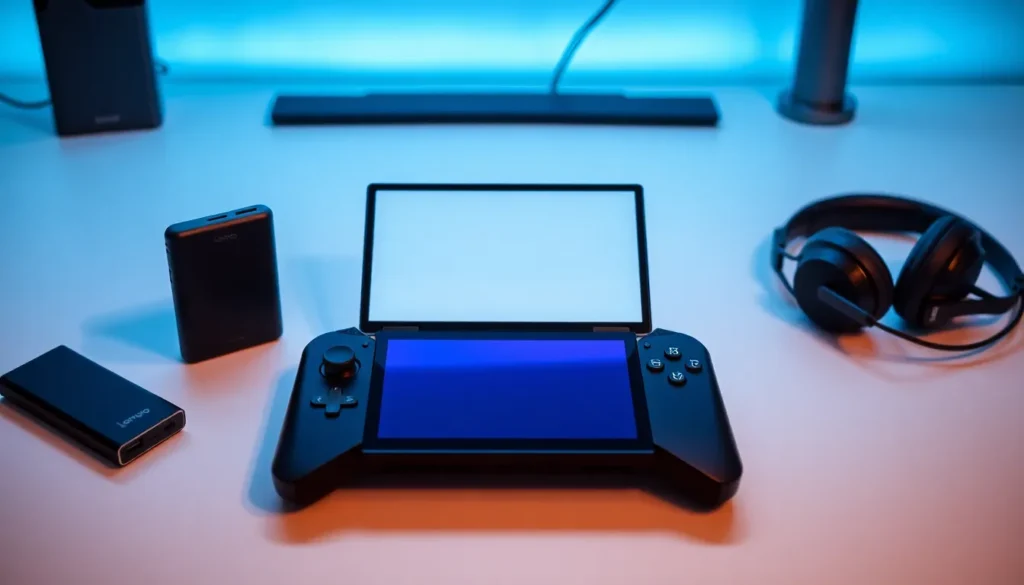

The Lenovo Legion Go packs serious power into a portable form factor. But out of the box, it doesn’t always perform at its best. These Lenovo Legion Go tips will help users squeeze more performance, better visuals, and longer battery life from their device.
Whether someone just unboxed their Legion Go or has owned it for months, a few smart adjustments can transform the experience. From display tweaks to controller tricks, this guide covers the practical settings that actually make a difference.
Table of Contents
ToggleKey Takeaways
- Lower your display resolution to 1280×800 for smoother gameplay while still maintaining sharp visuals on the Legion Go’s screen.
- Reduce TDP from 25W to 12-15W to potentially double your battery life in less demanding games.
- Enable AMD FreeSync in Adrenalin settings to eliminate screen tearing and create a smoother visual experience.
- Use FPS Mode by detaching the right controller to transform it into a mouse-like device for shooters and strategy games.
- Install Handheld Companion for enhanced controller support, per-game profiles, and additional power management options.
- Keep Windows, AMD drivers, and Legion Space updated to benefit from performance improvements and bug fixes.
Optimize Your Display Settings for Better Visuals
The Legion Go features an 8.8-inch IPS display with a 2560×1600 resolution and 144Hz refresh rate. That’s impressive hardware. But the default settings don’t always showcase it properly.
Choose the Right Resolution
Running games at native 2560×1600 looks sharp but hits performance hard. Most users find 1280×800 offers a solid balance. The display scales this resolution cleanly, and games run significantly smoother. For less demanding titles, bump it back up to native.
Adjust Refresh Rate Based on the Game
Not every game needs 144Hz. Switching to 60Hz for slower-paced titles saves battery and reduces GPU strain. Users can change this in Windows display settings or through Legion Space.
Enable FreeSync When Possible
The Legion Go supports AMD FreeSync. This feature syncs the display’s refresh rate with the game’s frame rate, reducing screen tearing. Enable it in AMD Adrenalin settings for a smoother visual experience.
Tweak Brightness and Color
The display can hit 500 nits, which drains battery quickly. Keeping brightness around 50-60% works well for indoor gaming. Users can also adjust color temperature in Windows settings if the default looks too warm or cool.
Extend Battery Life With Power Management Tweaks
Battery life remains the biggest challenge for handheld gaming PCs. The Legion Go ships with a 49.2Wh battery, and heavy gaming drains it in about two hours. These Lenovo Legion Go tips can stretch that runtime considerably.
Use Custom Power Modes
Legion Space offers three power modes: Quiet, Balanced, and Performance. For games that don’t demand maximum power, Quiet mode extends battery life by 30-45 minutes. The trade-off is lower frame rates, but many indie games and older titles run fine.
Lower the TDP
The Thermal Design Power (TDP) determines how much power the processor draws. Default settings often run higher than necessary. Dropping TDP from 25W to 15W or even 12W can double battery life in some games. More on this in the performance section.
Disable Background Apps
Windows loves running things in the background. Close unnecessary apps, disable startup programs, and turn off notifications during gaming. Every watt saved adds minutes of playtime.
Carry a Power Bank
This isn’t a setting, but it’s practical advice. A 65W USB-C power bank provides several extra hours of gaming. Look for one that supports Power Delivery for the fastest charging.
Master the Detachable Controllers and FPS Mode
The Legion Go’s detachable controllers set it apart from competitors. The right controller even transforms into a vertical mouse for FPS games. Understanding these features unlocks new ways to play.
FPS Mode Basics
Detach the right controller, flip out the kickstand on the tablet, and the controller becomes a mouse-like device. It works surprisingly well for shooters and strategy games. Users hold it like a joystick while using the trackpad and triggers for aiming and shooting.
Customize Button Mappings
Legion Space allows full button remapping. Players can assign any function to any button, including the back paddles. Creating game-specific profiles saves time when switching between titles.
Adjust Stick Sensitivity
The default stick sensitivity works for most games, but competitive players may want to fine-tune it. Legion Space offers dead zone adjustments and sensitivity curves. Smaller dead zones make sticks more responsive but may cause drift on older controllers.
Use Gyro Aiming
The controllers include gyroscopes for motion-based aiming. This feature takes practice, but many players find it more precise than stick aiming alone. Enable it in Legion Space and experiment with sensitivity settings.
These Lenovo Legion Go tips for controllers can significantly improve accuracy in shooters and add comfort during long gaming sessions.
Fine-Tune Performance With TDP and Fan Settings
The AMD Ryzen Z1 Extreme processor inside the Legion Go offers flexible power options. Users can push performance higher or dial it back for efficiency.
Understanding TDP Settings
TDP controls how much power the CPU and GPU can draw. Higher TDP means more performance but also more heat and faster battery drain. The Legion Go allows TDP adjustments from 8W to 30W.
For demanding AAA games, 25-30W delivers the best frame rates. For indie games or emulation, 12-15W often provides smooth gameplay with much better battery life.
Custom Fan Curves
Legion Space includes fan control options. The default automatic setting works for most situations. But creating a custom curve can reduce noise during lighter workloads or improve cooling during intense gaming.
Aggressive fan curves keep temperatures lower, which may slightly boost sustained performance. Quieter curves sacrifice some cooling for a more pleasant audio experience.
Monitor Temperatures
The Legion Go runs hot during demanding games. Temperatures above 85°C are common but safe. If the device thermal throttles (slows down to prevent overheating), better ventilation or a lower TDP setting helps. Some users prop up the device to improve airflow.
Essential Software and Windows Optimizations
Windows 11 wasn’t designed for handheld gaming. A few software tweaks make the Legion Go feel more like a dedicated gaming device.
Update Everything
Keep Windows, AMD drivers, and Legion Space updated. Lenovo regularly releases firmware updates that improve performance and fix bugs. AMD’s Adrenalin software also receives frequent optimizations for new games.
Install Handheld Companion
This free third-party app adds features Lenovo doesn’t include. It offers better controller support, per-game profiles, and additional power management options. Many Legion Go owners consider it essential.
Disable Unnecessary Windows Features
Turn off Game Bar, disable Hyper-V if not needed, and reduce visual effects. These changes free up system resources. The difference isn’t dramatic, but every bit of performance helps on a handheld device.
Use Game Mode
Windows Game Mode prioritizes gaming performance and reduces background interruptions. It’s enabled by default, but double-check in Windows settings under Gaming.
Consider Alternative Launchers
Playnite and other game launchers combine libraries from Steam, Epic, GOG, and other platforms into one interface. They work well with controllers and simplify game management on the Legion Go.
These Lenovo Legion Go tips for software ensure the operating system helps rather than hinders gaming performance.